

Install the command line tools macos 13 ventura

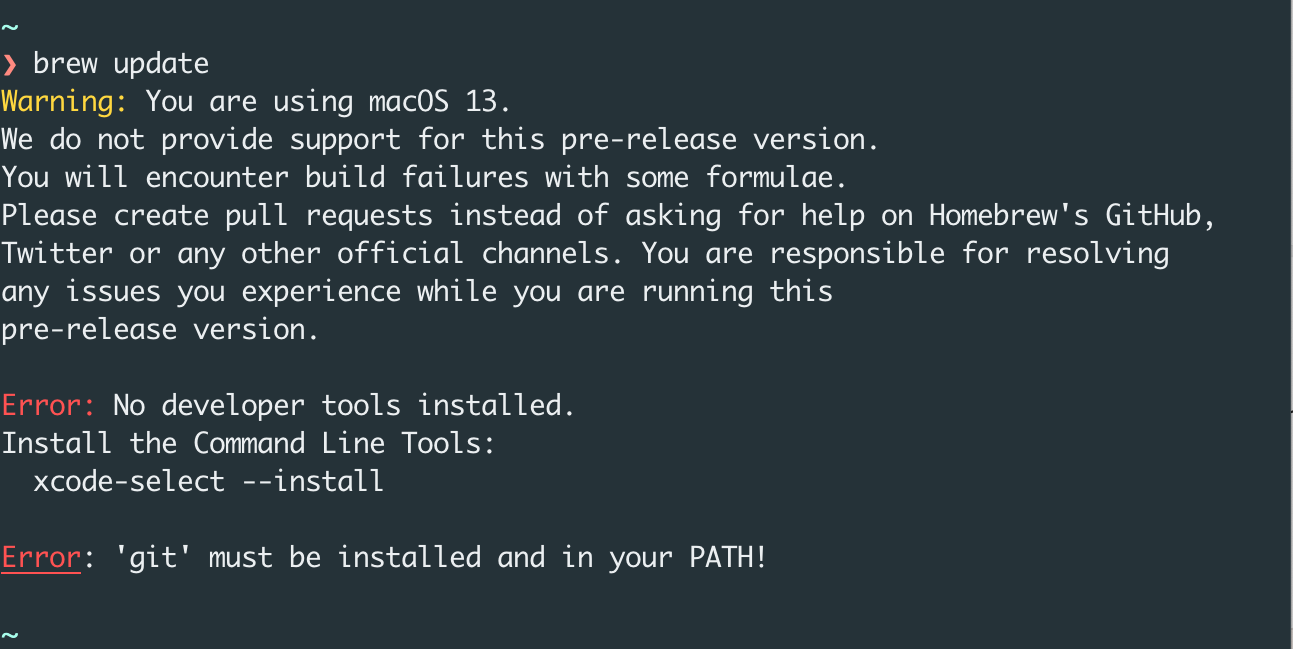
If you are using macOS 13 Ventura, then while using brew you might have seen this error:
In my case, using terminal command to install the command line tools did not work. So I have to install it manually.
Warning: You are using macOS 13
We do not provide support for this pre-release version.
You will encounter build failures with some formulae.
Please create pull requests instead of asking for help on Homebrew's GitHub, Twitter or any other official channels. You are responsible for resolving any issues you experience while you are running this pre-release version.
Error: No developer tools installed.
Install the Command Line Tools:
xcode-select --install
Error: 'git' must be installed and in your PATH!
To fix this error, you need to install the command line tools. To do that, run the following command:
Need to login with your Apple ID
Download the latest version Command Line Tools for Xcode 14.1 Release Candidate 2
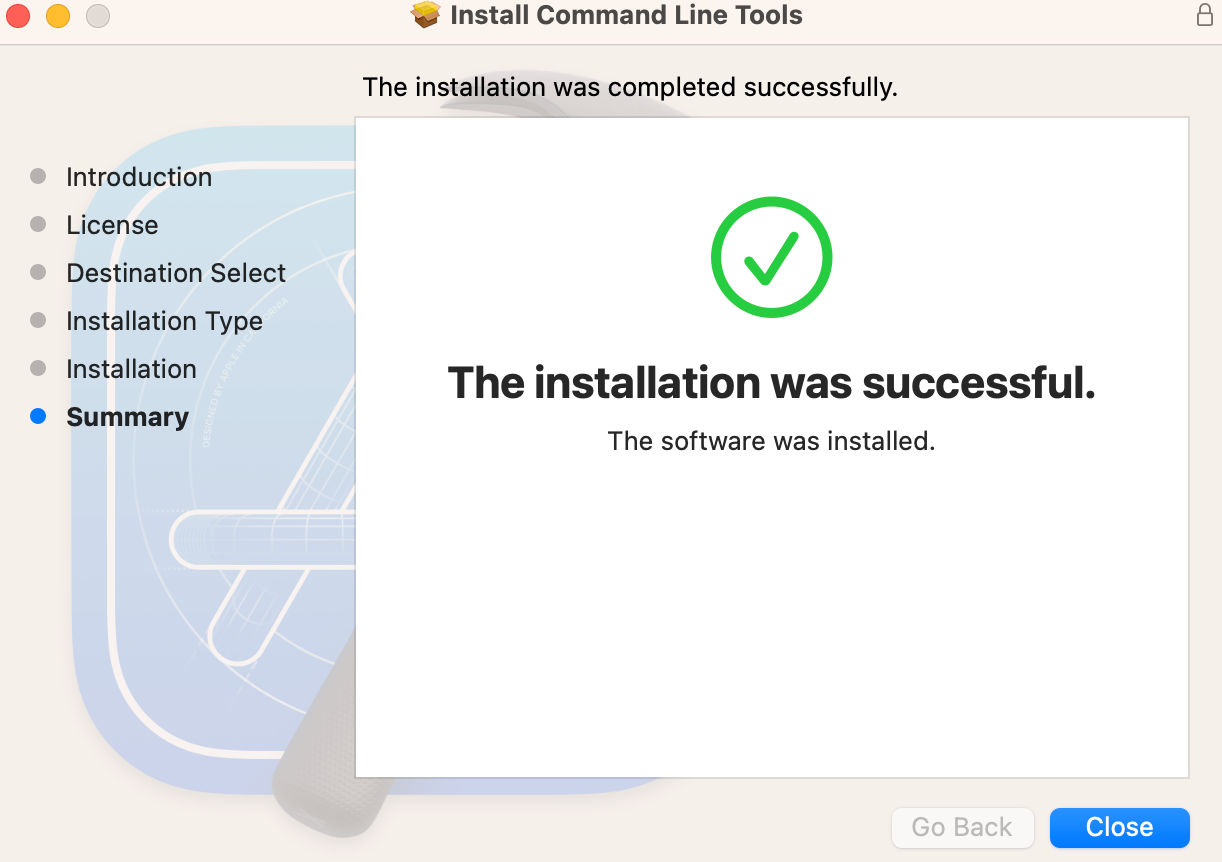
Install the downloaded file
Run the following command to check if the command line tools are installed
git --version
If you see the version of git, then you are good to go. If you see the same error, then you need to install the command line tools again.



You may also like
See all EngineeringEngineering
Compress a folder using python
Compress a folder using python

Engineering
Difference between audio channel 2/16/64 channel audio
What is the difference between 2 channel, 16 channel and 64 channel audio?

Engineering
Best Email Marketing Software for Small Businesses
Email marketing is a procedure for transmitting information using email. It can be sent as a single email to individual customers or bulk emails for groups. In other words, it is the strategy of using email to broaden the service or products of the corporation. They are also used for building and maintaining a healthy connection with the clients. This also includes sending advertisements, promoting brands, requesting sales or donations, and many more.
