

Turn on background sound on Mac OS Ventura and higher

Key Takeaways
macOS Ventura and later provide a native ambient noise feature designed for focus and productivity. By accessing the Audio section of Accessibility settings, users can enable customizable background sounds that play independently of other applications, featuring automated sleep-state triggers and high-quality audio downloads for a seamless workstation experience.
- Native Background Sound functionality is integrated into the macOS Accessibility layer (System Settings > Audio), streamlining focus tools without third-party software overhead.
- Audio profiles (e.g., Rain, Ocean, White Noise) require an active internet connection for the initial asset fetch before they can be utilized offline.
- The system allows for automated state-based control, enabling the background audio to terminate upon system sleep or lock to conserve battery life.
Background sound is a feature that allows you to play music in the background while you are using other apps. This feature is available on Mac OS, but it is not enabled by default. In this article, I will show you how to turn on background sound on Mac OS Ventura and higher.
Before we start, you need to know that this feature is only available on Mac OS ventura and higher. If you are using an older version of Mac OS, please follow this article where we show you how to turn on background sound on Mac OS (for older version).
For mac OS Ventura and higher
Open the System Preferences app.
Click on Accessibility and then click on Audio.
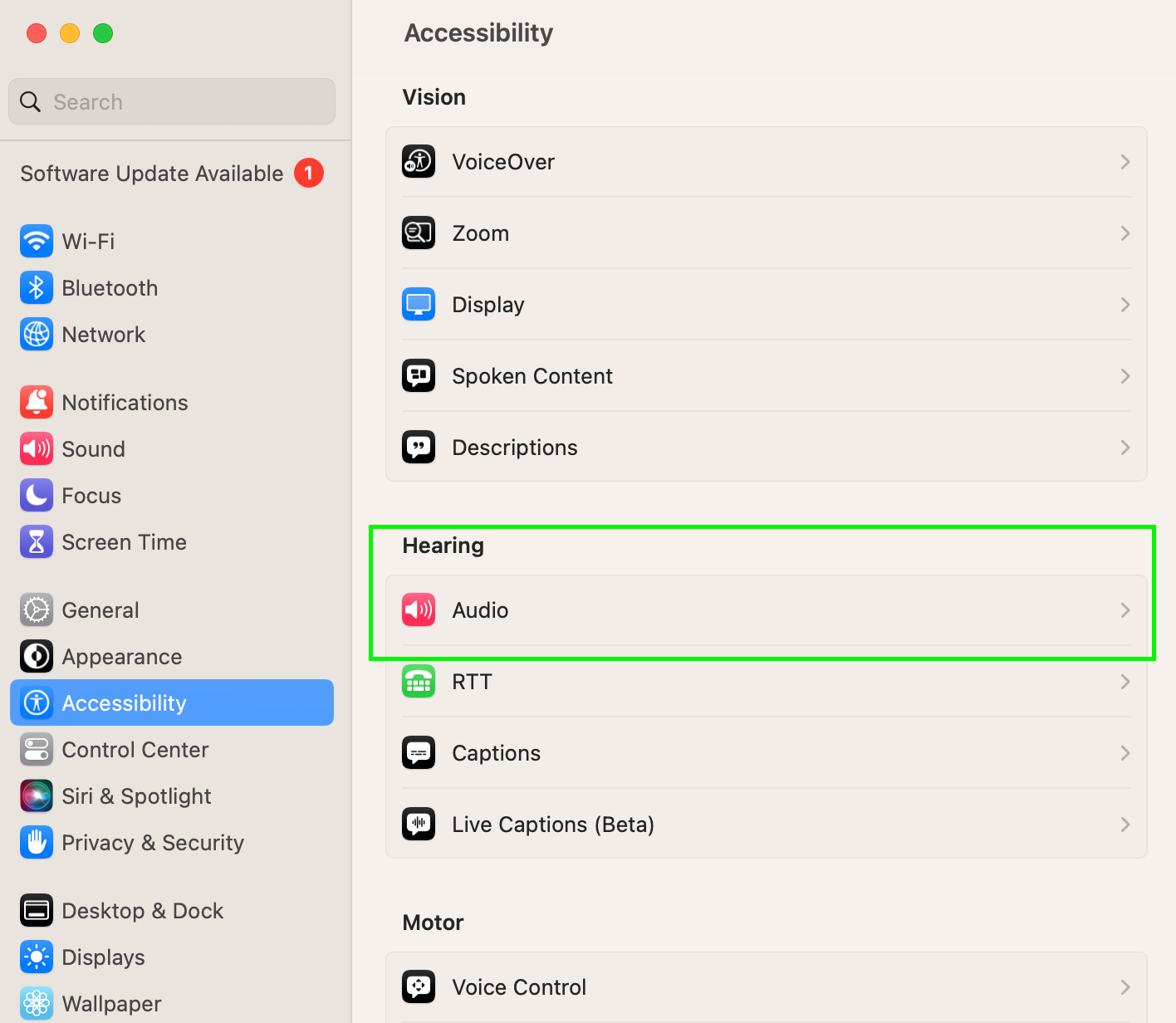
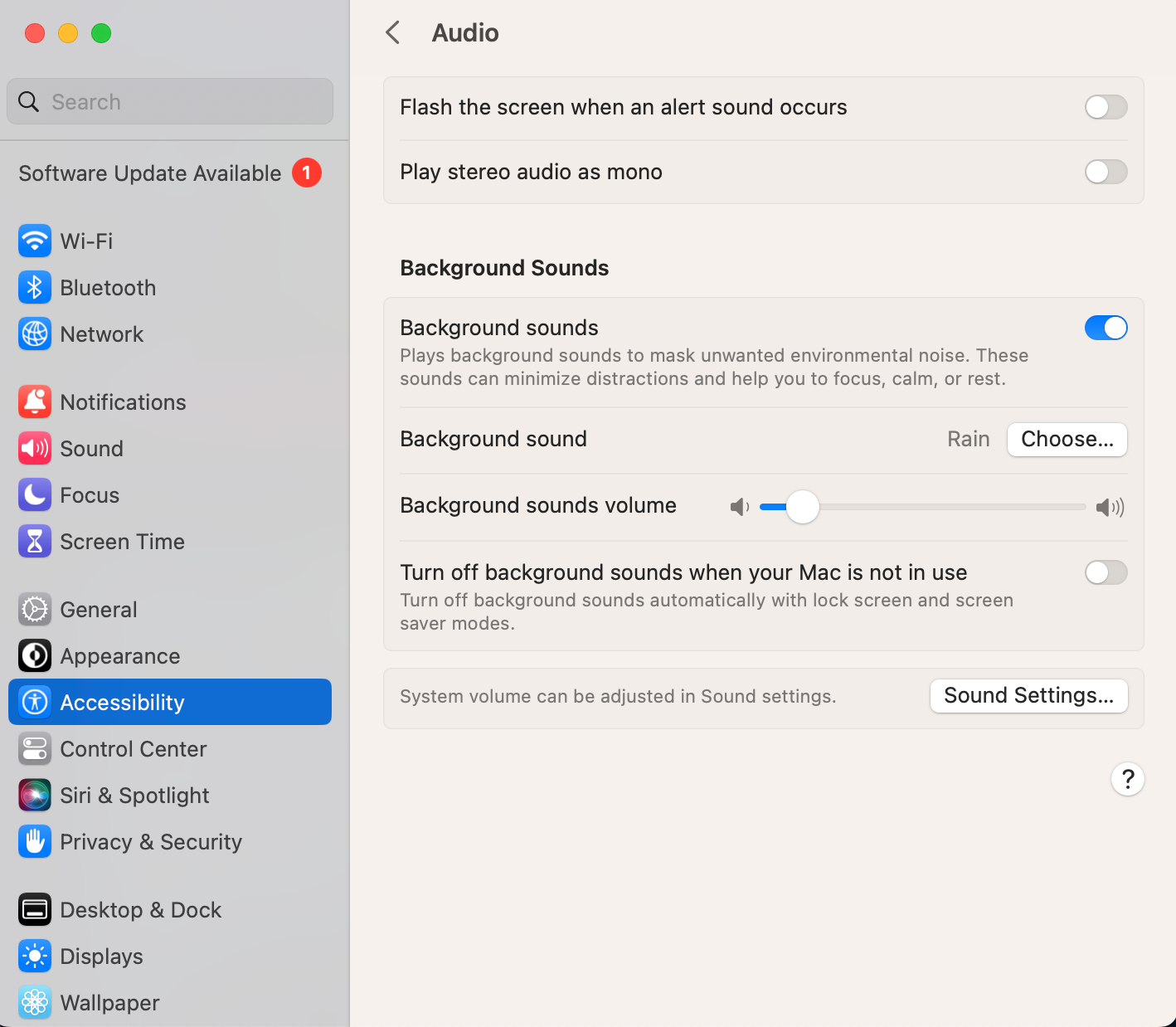
Check the Background Sound settings. First you need to turn on
Background soundsby sliding the button to the right. Then you can choose the sound you want to play in the background. You can choose from the list of sounds or you can choose a sound from your computer. To select the different kind of sound you need active internet connection to initially download the sound. There is another option where you can stop the background sound when mac goes to sleep. You can turn this option on or off by sliding the button to the right or left.
Related Technical Insights



You may also like
See all Future TechUltimate documentary to watch on holidays

The Dawn of Orbital Drug Manufacturing?

NASA's Curiosity Rover Drill Stuck: A Martian Mishap
